If you have been scrolling through TikTok lately, you have probably seen users transforming themselves into gritty survivors straight out of The Last of Us. The trend has quickly gained traction, especially after the popularity of its TV adaptation on HBO.
The appeal is obvious. Fans want to imagine themselves in the harsh, post-apocalyptic world of the franchise, and this filter makes that possible. However, unlike most viral TikTok effects, this one is not directly available inside the app.
That can make things confusing if you are trying to recreate the effect. The good news is that the process is simple once you know where to look. Let’s break down exactly how to get the Last of Us filter on TikTok and how to use it properly.
Why the Last of Us Filter Is Trending
The rise of this filter is closely tied to the ongoing popularity of The Last of Us franchise. Originally released in 2013, the game became a massive hit for its storytelling, characters, and emotional depth. Years later, its TV adaptation introduced the story to an even wider audience.
This renewed interest sparked creative trends across social media. TikTok users began experimenting with ways to recreate the gritty aesthetic of the series, leading to the viral spread of the Last of Us filter.
What makes this trend stand out is its transformation effect. Instead of a simple overlay, it shows a dramatic before-and-after look, turning an ordinary selfie into something that feels cinematic and immersive.
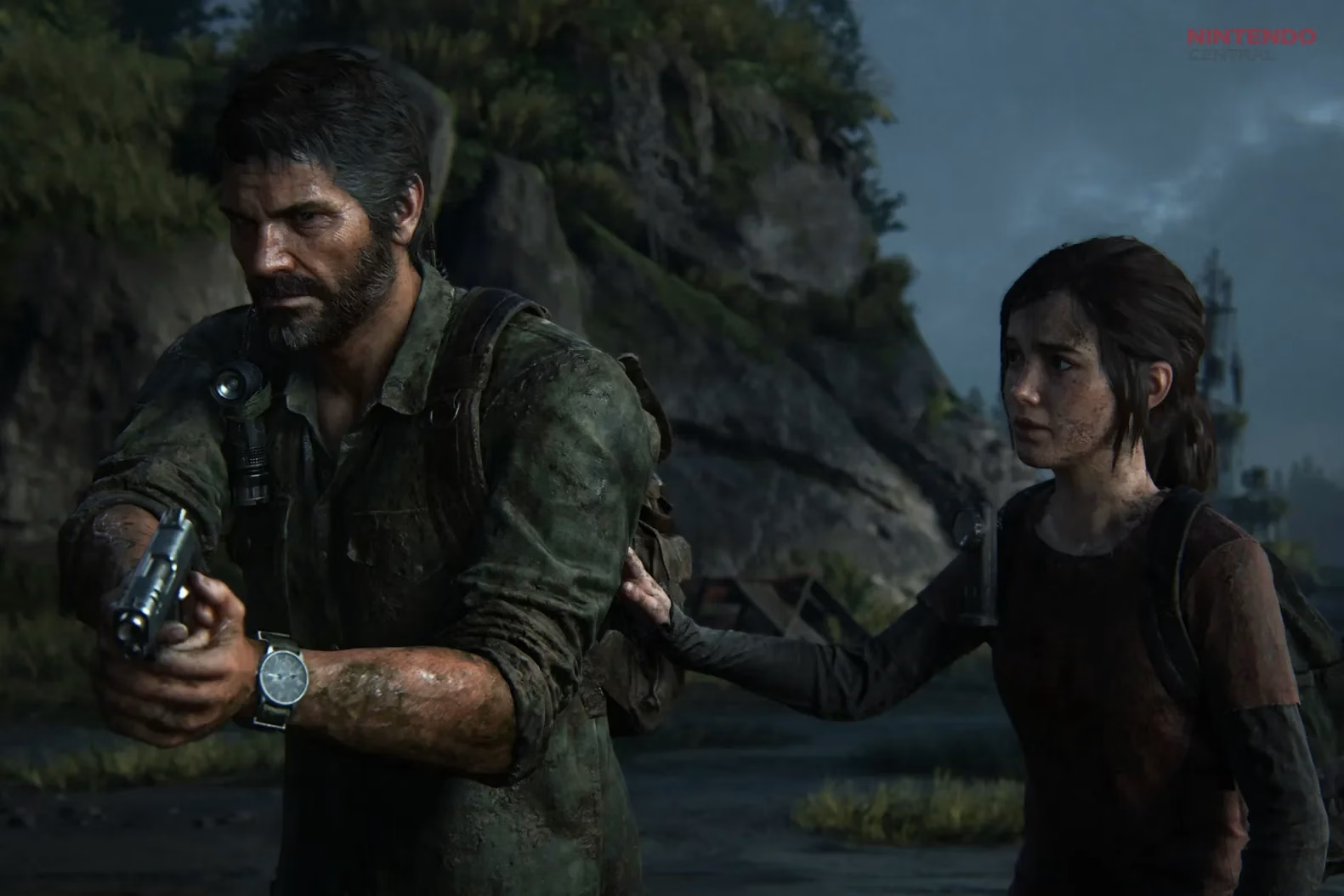
Where to Find the Last of Us Filter
One important thing to understand is that the Last of Us filter is not built into TikTok itself. Searching for it in the app will not give you the result you are looking for.
Instead, the effect is created using two external apps. The first is Photoleap, which handles the AI-generated transformation. The second is CapCut, which is used to create the transition effect that makes the trend visually appealing.
Both apps are free to download and available on Android and iOS devices. Once you install them, you will have everything you need to recreate the viral effect.
The process involves editing a photo first and then turning it into a short video. While it may seem like extra work, it only takes a few minutes once you understand the steps.
Start by opening Photoleap and selecting the AI Selfies feature. This is where the transformation happens. Choose a clear photo of yourself from your gallery, as the quality of the image will directly impact the final result.
Next, select the custom option and type “Last of Us” as your prompt. The app will process your image and generate a stylized version inspired by the game’s aesthetic.
Once the transformation is complete, you will see a split screen showing the original and edited versions. Adjust the slider to fully apply the effect, then save the edited image to your device.
After creating your transformed image, the next step is to turn it into a video using CapCut. This is what gives the trend its signature before-and-after transition.
Open CapCut and select a photo transition template. Import your edited image first, followed by the original photo. This order is important because it creates the dramatic reveal effect that viewers expect.
Apply the transition, preview the result, and then export the video to your device. Once done, you can upload it directly to TikTok and add music or captions to match the trend.
This simple workflow is what powers thousands of videos currently circulating on the platform.